Friday, December 6, 2024


Thursday, December 5, 2024
Best Way to Uninstall Programs in Windows 2024 Revealed!
Thursday, November 28, 2024
PLDT's "Fiber Always On": Because Internet Downtime is So 2005

Say goodbye to those awkward moments when your WiFi gives up
during your Netflix and chill or right in the middle of an intense
online game. PLDT’s Fiber Always On is here to save the day—and your
sanity.
Two is Better Than One
This hybrid modem is like your favorite duo: fiber for speed
and LTE for backup. When your fiber says, “BRB,” LTE steps in with, “Don’t
worry, I got this.” It’s the relationship you deserve, one that doesn’t leave
you hanging.
No "Load Drama"
Unlike your clingy ex, LTE isn’t demanding. The data is
already part of your plan! For just PHP 299/month, it’s your internet’s life
insurance policy, peace of mind for the price of your weekly milk tea fix.
SOS for Your WiFi
Lost fiber connection? No need to panic or refresh your
router a million times. PLDT’s system automatically files a service request
faster than you can say, “Hello, tech support?”
Speed That Gets You
With Smart’s LTE Cat 6 tech, you’ll get up to 300 Mbps
download speeds—perfect for working, gaming, or watching your favorite K-drama.
Plus, with WiFi 6 support, your connection is smooth, steady, and ready to flex
on both 2.4GHz and 5GHz bands.
How to Get It
1.
Add it to your existing PLDT Fiber plan for just
PHP 299/month.
2.
Call PLDT customer service.
3.
Wait 24-48 hours (faster than your last food
delivery).
With Fiber Always On, internet interruptions are a thing of
the past. It’s the superhero your WiFi didn’t know it needed—fast, reliable,
and always online.
So, what are you waiting for? Because buffering isn’t cute. 😏
Wednesday, November 27, 2024
Automate Your WORK HOURS in 2 Minutes!
Monday, November 11, 2024
How to Check Attachment Size Limits in Microsoft Outlook

In Microsoft Outlook, the attachment limit is typically 20 MB for standard email accounts (such as Outlook.com and Office 365). However, the attachment limit can vary depending on the email provider you're using (e.g., Gmail, Yahoo, or other services linked to Outlook).
To check the attachment limit in your Outlook, follow these steps:
- Check Outlook Documentation: You can go to Microsoft Support and search for "attachment limit" to find the latest information.
- Email Account Settings: In Outlook, go to your account settings and check the configurations to see if your email provider’s attachment limit is indicated there.
- Attachment Prompt: If you exceed the limit while attaching a file, you’ll see an error message indicating that the attachment size is beyond the allowed limit.
If you often encounter issues with attachment size, you can use OneDrive or another cloud storage service to share larger files.
Sunday, November 10, 2024
Difference Between 𝑰𝑻 (𝑰𝒏𝒇𝒐𝒓𝒎𝒂𝒕𝒊𝒐𝒏 𝑻𝒆𝒄𝒉𝒏𝒐𝒍𝒐𝒈𝒚), 𝑪𝒐𝒎𝒑𝒖𝒕𝒆𝒓 𝑺𝒄𝒊𝒆𝒏𝒄𝒆 (𝑪𝑺) 𝒂𝒕 𝑪𝒐𝒎𝒑𝒖𝒕𝒆𝒓 𝑬𝒏𝒈𝒊𝒏𝒆𝒆𝒓𝒊𝒏𝒈 (𝑪𝒐𝑬) course
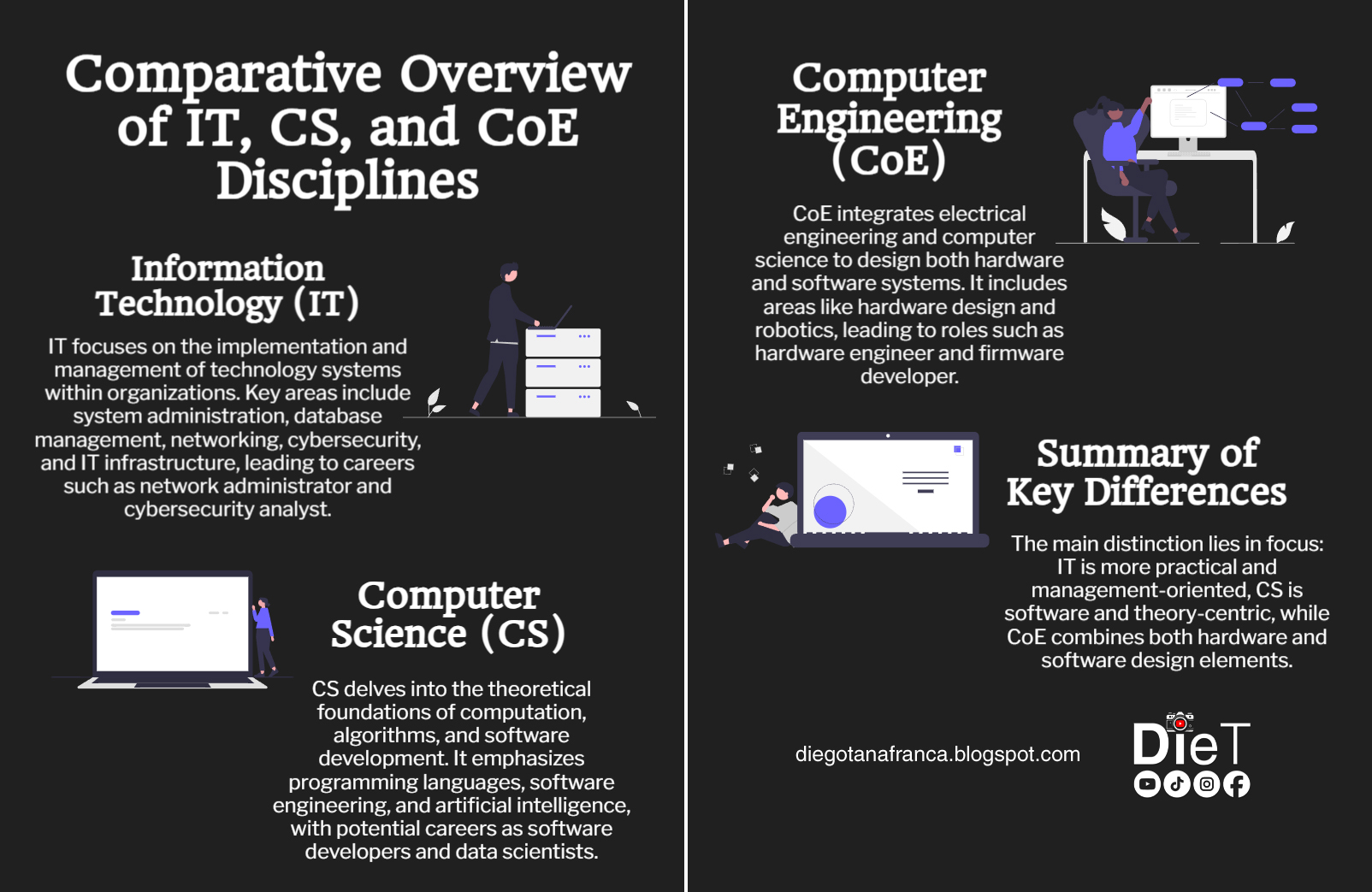
Information Technology (IT):
- Focus: Implementing and managing technology for businesses or organizations.
- Key Areas: System administration, database management, networking, cybersecurity, and IT infrastructure.
- Skills: Maintaining systems, troubleshooting, managing servers and networks, and assisting users.
- Career Path: Network administrator, IT support specialist, systems analyst, database administrator, cybersecurity analyst.
Computer Science (CS):
- Focus: Studying computation, algorithms, and software development, with a focus on the theoretical aspects of computing.
- Key Areas: Programming languages, software engineering, artificial intelligence, machine learning, data structures, algorithms, and computational theory.
- Skills: Software development, coding, problem-solving in computational issues, and creating new technologies.
- Career Path: Software developer, data scientist, AI specialist, systems architect, research scientist.
Computer Engineering (CoE):
- Focus: Combines electrical engineering and computer science to design hardware and software systems, focusing on building and designing computers and their components.
- Key Areas: Hardware design, microprocessors, embedded systems, circuit design, robotics, and firmware development.
- Skills: Designing and assembling hardware, optimizing hardware-software integration performance, programming low-level systems (e.g., assembly language).
- Career Path: Hardware engineer, embedded systems engineer, robotics engineer, firmware developer, chip designer.
Summary of Differences:
- IT: More practical, focused on using and managing technology.
- CS: Focused on software development and computational theory.
- CoE: Combines hardware and software, focused on creating physical computer systems and devices.
In short, if you want to focus on software and algorithms, CS is your path; if you’re into hardware and devices, go for CoE; and if you want to work in technology management and operations in companies, IT is the best fit!
Microsoft Excel Shortcut Keys Reference
Here are some useful shortcut keys in Excel that can
enhance your productivity:

 Ctrl + C: Copy selected
cells.
Ctrl + C: Copy selected
cells.
Ctrl + X: Cut selected
cells.
Ctrl + V: Paste copied or
cut cells.
Ctrl + Z: Undo the last
action.
Ctrl + Y: Redo the last
undone action.
Ctrl + A: Select the
entire worksheet.
Ctrl + Home: Navigate to
cell A1.
Ctrl + Arrow keys (Up,
Down, Left, Right): Move to the edge of the current data region in the
direction of the arrow key.
Ctrl + Shift + Arrow keys
(Up, Down, Left, Right): Select cells from the current cell to the edge of the
data region in the direction of the arrow key.
Ctrl + Shift + L: Toggle
filter on/off for the selected range.
Ctrl + Shift + L + Arrow
keys (Up, Down): Select entire columns or rows within a filtered range.
Alt + =: AutoSum selected
cells.
F2: Edit the active cell.
Ctrl + Shift +
"+": Insert new cells, rows, or columns.
Ctrl + "-":
Delete cells, rows, or columns.
Ctrl + Shift +
"$": Apply currency format.
Ctrl + Shift +
"%": Apply percentage format.
Ctrl + Shift +
"#": Apply date format.
Alt + Enter: Start a new
line within a cell.
F4: Repeat the last action.
Wednesday, November 6, 2024
Automate Your Loan Due Date Tracking Using EDATE: Conditional Formatting...
Monday, November 4, 2024
How to Create an Automated Attendance Sheet in Excel with Conditional Fo...
Saturday, November 2, 2024
How to Merge Rank, Full Name, and Suffix in Excel Using TEXTJOIN
Monday, October 21, 2024
Get Ready for a Sulit Food Trip LIKE NO OTHER with Mang Gyupsal!


Imagine this: unlimited BBQ and street food without needing
to order straight from Korea! They’ve got BBQ, fried noodles, fish cakes,
corndogs, tteokbokki, and even a kimchi burger! Yup, you heard that right, a
kimchi burger! You won’t find that everywhere.

But wait, there’s more! If you love sizzling dishes, you’re in for a treat. Mang Gyupsal serves up Korean Soy Garlic Chicken, Sizzling Kare-Kare, and the crispiest, most flavorful sisig. Trust me, the sisig here is next-level - crispy and creamy all at once, like a fiesta in your mouth!
Feeling adventurous? Try their Do-It-Yourself ramen, where
you can customize the flavors to your heart’s content. Plus, they’ve got
classics like chao pan, pansit canton, and lutong-bahay dishes, making it the
ultimate comfort food destination.

The vibe? Super chill! With an al fresco setup and a cozy second floor, it’s the perfect spot to unwind after class or hang out with friends. Best of all, it’s easy on the student budget, so you can enjoy that unli BBQ without feeling guilty about your allowance.

And don’t forget the extras - Korean eggdrop sandwiches,
chicken pastil, fries, and refreshing coolers to wash down all the
deliciousness. If you’re looking for an all-in-one dining experience that’s
both sulit and satisfying, Mang Gyupsal is the place to be.

So, what are you waiting for? Unli BBQ, sizzling dishes, Korean street food, and more, it’s all here! Perfectly located near Enverga University, Mang Gyupsal is your new post-class hangout. Kita-kits sa Mang Gyupsal!


Friday, October 18, 2024
Monday, October 14, 2024
Speed Up Your PC: Disable Apps from Running at Startup!
Disabling applications from running
on startup can help speed up your computer's boot time and improve performance.
Here's how to do it on various platforms:
Windows:
- Task Manager:
- Right-click the taskbar
and select Task Manager.
- Go to the Startup tab.
- Right-click any program you
want to disable and choose Disable.
- Settings (Windows 11/10):
- Go to Settings > Apps
> Startup.
- Toggle off any app you don't
want to run at startup.
Mac:
- System Preferences:
- Click the Apple menu
and go to System Preferences.
- Open Users & Groups,
then select your user account.
- Click the Login Items
tab.
- Select the app you want to
disable and click the minus (-) button.
Ubuntu/Linux:
- Startup Applications:
- Open the Startup
Applications tool.
- Find the program in the list
and uncheck it, or select it and click Remove.
Disabling unnecessary apps can make
your system start faster and run smoother.
Friday, October 11, 2024
Elon Musk's Futuristic ROBOTAXI, ROBOVAN, and HUMANOID ROBOTS: Welcome to the Future!
Okay, Elon Musk is at it again, folks! The man
just dropped some news that feels like straight out of a sci-fi movie—except,
you know, it's happening for real. So let’s break it down because wow.
First off, Tesla’s Robotaxi. Fully autonomous
and… wait for it… under 30k! Like, imagine telling your car, ‘Hey, take me to
the grocery store,’ while you’re sitting back eating chips. Is this the future,
or just a lazy person’s dream come true? Either way, I’m here for it!
And look at it go! No more ‘I’m stuck in traffic’
excuses, my friends. This thing just knows what to do. Honestly, does
it come with a therapist feature? ‘Cause I could use one during rush hour.
But wait, there’s more! Introducing the Robovan!
Yes, a 20-passenger van that probably runs smoother than my group of friends
trying to decide where to eat. It’s like Musk just said, ‘Why stop at taxis?
Let’s make carpooling futuristic, too!’ Imagine the road trips with this thing!
No one’s fighting over shotgun anymore—because it’s driving itself!
I have one question though - if I host karaoke in
this van, do I have to pay the van extra for keeping up with my terrible
singing?
Then comes Optimus, the humanoid robot. Oh great,
now I’m officially out of excuses for why I haven’t cleaned my room. Thanks,
Elon.
Look at this robot doing all the human stuff. I
feel attacked. Next thing you know, it’ll be better at small talk than I am - and
that’s just unfair!
And Elon’s over here casually mentioning that
these robots are gonna replace some human jobs. Meanwhile, I’m like, ‘Can they
replace my stress levels?’ But in all seriousness, these robots are cool... and
a tiny bit terrifying.
So, in summary: robot taxis, van parties, and
humanoid robots. Elon Musk just keeps pulling us deeper into the future. I’m
excited, slightly scared, but mostly just hoping these robots won’t judge my
life choices. What do you guys think? Drop a comment below, and let’s chat
about our future robot overlords - I mean, assistants. Same thing, right?
Ang Sarap ng Pancit Guisado sa Kwatogs!!!
Finally got to taste the famous Pansit Guisado at Kwatogs Lucena Poblacion - wow, ang sarap nga! Perfect balance ng savory at saucy, with just the right amount of crunch! Shoutout sa generous sponsor, libre is life!
Kwatogs is a Filipino casual dining restaurant that serves
mouth-watering noodle dishes, thereby empowering its famous Pansit Guisado.
They serve different kinds of comfort foods in Filipino cuisine such as lomi,
miki bihon, and rice meals. Starting from its original branches in the Batangas
area, Kwatogs has now expanded into many places, one of which is here in Lucena
City.
Food at this restaurant is highly affordable, highly
filling, and exudes typically Filipino flavor, thus attracting people who want
real food with good portions. If you're still craving that home-style cooking,
then Kwatogs isn't a bad try at all.
Thursday, March 21, 2024
Convert Numbers into Words in Microsoft Excel (Code)
Option Explicit
'Main Function
Function SpellNumber(ByVal MyNumber, Output)
Dim Dollars, Cents, Temp
Dim DecimalPlace, Count
ReDim Place(9) As String
Place(2) = " Thousand "
Place(3) = " Million "
Place(4) = " Billion "
Place(5) = " Trillion "
' String representation of amount.
MyNumber = Trim(Str(MyNumber))
' Position of decimal place 0 if none.
DecimalPlace = InStr(MyNumber, ".")
' Convert cents and set MyNumber to dollar amount.
If DecimalPlace > 0 Then
Cents = GetTens(Left(Mid(MyNumber, DecimalPlace + 1) & "00", 2))
MyNumber = Trim(Left(MyNumber, DecimalPlace - 1))
End If
Count = 1
Do While MyNumber <> ""
Temp = GetHundreds(Right(MyNumber, 3))
If Temp <> "" Then Dollars = Temp & Place(Count) & Dollars
If Len(MyNumber) > 3 Then
MyNumber = Left(MyNumber, Len(MyNumber) - 3)
Else
MyNumber = ""
End If
Count = Count + 1
Loop
If Output = 0 Then
Select Case Dollars
Case ""
Dollars = ""
Case "One"
Dollars = ""
Case Else
Dollars = Dollars
End Select
Select Case Cents
Case ""
Cents = ""
Case "One"
Cents = "Point One"
Case Else
Cents = " Point " & Cents
End Select
End If
If Output = 1 Then
Select Case Dollars
Case ""
Dollars = "No Dollars"
Case "One"
Dollars = "One Dollar"
Case Else
Dollars = Dollars & " Dollars"
End Select
Select Case Cents
Case ""
Cents = " and No Cents"
Case "One"
Cents = " and One Cent"
Case Else
Cents = " and " & Cents & " Cents"
End Select
End If
If Output = 2 Then
Select Case Dollars
Case ""
Dollars = "No Pesos"
Case "One"
Dollars = "One Peso"
Case Else
Dollars = Dollars & " Pesos"
End Select
Select Case Cents
Case ""
Cents = " and No Cents"
Case "One"
Cents = " and One Cent"
Case Else
Cents = " and " & Cents & " Cents"
End Select
End If
If Output = 3 Then
Select Case Dollars
Case ""
Dollars = "No Pounds"
Case "One"
Dollars = "One Pound"
Case Else
Dollars = Dollars & " Pounds"
End Select
Select Case Cents
Case ""
Cents = " and No Pence"
Case "One"
Cents = " and One Pence"
Case Else
Cents = " and " & Cents & " Pence"
End Select
End If
If Output = 4 Then
Select Case Dollars
Case ""
Dollars = "No Euros"
Case "One"
Dollars = "One Euro"
Case Else
Dollars = Dollars & " Euros"
End Select
Select Case Cents
Case ""
Cents = " and No Cents"
Case "One"
Cents = " and One Cent"
Case Else
Cents = " and " & Cents & " Cents"
End Select
End If
SpellNumber = Dollars & Cents
End Function
' Converts a number from 100-999 into text
Function GetHundreds(ByVal MyNumber)
Dim Result As String
If Val(MyNumber) = 0 Then Exit Function
MyNumber = Right("000" & MyNumber, 3)
' Convert the hundreds place.
If Mid(MyNumber, 1, 1) <> "0" Then
Result = GetDigit(Mid(MyNumber, 1, 1)) & " Hundred "
End If
' Convert the tens and ones place.
If MyNumber <= 99.99 Then
If Mid(MyNumber, 2, 1) <> "0" Then
Result = Result & GetTens(Mid(MyNumber, 2))
Else
Result = Result & GetDigit(Mid(MyNumber, 3))
End If
Else
If Mid(MyNumber, 2, 1) <> "0" Then
Result = Result & "and " & GetTens(Mid(MyNumber, 2))
Else
Result = Result & "and " & GetDigit(Mid(MyNumber, 3))
End If
End If
GetHundreds = Trim(Result)
End Function
' Converts a number from 10 to 99 into text.
Function GetTens(TensText)
Dim Result As String
Result = "" ' Null out the temporary function value.
If Val(Left(TensText, 1)) = 1 Then ' If value between 10-19...
Select Case Val(TensText)
Case 10: Result = "Ten"
Case 11: Result = "Eleven"
Case 12: Result = "Twelve"
Case 13: Result = "Thirteen"
Case 14: Result = "Fourteen"
Case 15: Result = "Fifteen"
Case 16: Result = "Sixteen"
Case 17: Result = "Seventeen"
Case 18: Result = "Eighteen"
Case 19: Result = "Nineteen"
Case Else
End Select
Else ' If value between 20-99...
Select Case Val(Left(TensText, 1))
Case 2: Result = "Twenty "
Case 3: Result = "Thirty "
Case 4: Result = "Forty "
Case 5: Result = "Fifty "
Case 6: Result = "Sixty "
Case 7: Result = "Seventy "
Case 8: Result = "Eighty "
Case 9: Result = "Ninety "
Case Else
End Select
Result = Result & GetDigit(Right(TensText, 1)) ' Retrieve ones place.
End If
GetTens = Trim(Result)
End Function
' Converts a number from 1 to 9 into text.
Function GetDigit(Digit)
Select Case Val(Digit)
Case 1: GetDigit = "One"
Case 2: GetDigit = "Two"
Case 3: GetDigit = "Three"
Case 4: GetDigit = "Four"
Case 5: GetDigit = "Five"
Case 6: GetDigit = "Six"
Case 7: GetDigit = "Seven"
Case 8: GetDigit = "Eight"
Case 9: GetDigit = "Nine"
Case Else: GetDigit = ""
End Select
End Function
Saturday, September 23, 2023
iPhone 15 Launch Sparks Commotion Among Apple Fans

Hey, everyone! Welcome back to our blog, and today we've got some wild news for you. It's the day we've all been waiting for – the global release of Apple's brand-new iPhone 15!
#Apple #iphone15 on sale today
— Susan Li (@SusanLiTV) September 22, 2023
Lines at #NYC famous cube🧊
Caught up with $aapl CEO who was on hand to open the store to greet the fans
Lines are going down to Park Ave😳
Analyst channel checks say #iPhone15ProMax selling better than last year with delays until mid Nov#tech pic.twitter.com/QcUEvmL0Ax
Insane line at the Apple store in SF to pick up the new iPhone. This is for people who prepaid with appointments to pickup the phone 💀 pic.twitter.com/cuBsjFY1e4
— Mandy Hong (@mandyhong08) September 22, 2023
But let's talk about Dubai Mall. Hundreds of
eager shoppers gathered there in anticipation of the iPhone 15 launch. Security
had to step in and put up barriers as the crowd grew, trying to keep things
under control.
Apple fans staged a massacre at the Dubai Mall while queuing for the new iPhone15 Pro Max.
— Everything you need to know (@Everything65687) September 22, 2023
Hundreds of people stood for two days waiting for the start of sales. The crowd tried to break through to the store, but security guards blocked their way. pic.twitter.com/v3iY1Tj6cV
But as the big moment got closer, it seemed some folks
couldn't contain their excitement. Social media was flooded with videos of
customers racing up escalators, trying to outdo each other.
Unfortunately, what started as minor disagreements quickly
escalated into a full-blown brawl, and this was all caught on camera by a user
on the X Twitter platform, with the handle @levelsio.
Chaos in a Dubai shopping center to buy the new iPhone 15
— @levelsio (@levelsio) September 22, 2023
That's how important USB-C is pic.twitter.com/UccbtKgYU3
Crazy, right? Now, this isn't the first time we've seen
something like this happen during a device launch. And you know what? It
probably won't be the last.
But it's not all bad news. In other major cities like New
York City, London, Mumbai and Beijing, it seems things have been relatively peaceful
in comparison.
Loyal fans of Apple queuing to buy the new #iphone15 in Beijing, China.
— Alvin Foo (@alvinfoo) September 23, 2023
pic.twitter.com/kkGiNsG2iu
@Apple fans in #India received the ' #MakeInIndia ' #iPhone15 and locally-assembled 15 Plus at #AppleSaket in #NewDelhi and Apple BKC in Mumbai, despite long queues since early morning. pic.twitter.com/qkh22ZqaAz
— IT Solution INDIA🇮🇳 (@itsolutionindia) September 22, 2023
So, there you have it, folks. The iPhone 15 is here, and
it's causing quite a stir worldwide. Let us know in the comments if you've ever
been a part of a device launch like this, and don't forget to hit that
subscribe button on my YouTube channel for more. Thanks!
Subscribe to my YouTube channel
Friday, September 22, 2023
Unveiling Mt. Banahaw Viewdeck & Cabin: A Slice of Haven in Sariaya, Quezon

Hey there, fellow adventurers!
Today, we're thrilled to take you along on a journey to one of the Quezon province's most breathtaking destinations: the Mt. Banahaw Viewdeck & Cabin in
Sariaya, Quezon. We were incredibly fortunate to spend a couple of hours at this enchanting
spot, and we can't wait to spill the beans about our fantastic experience.
Let's begin by discussing the
incredible setting and atmosphere. From the moment we arrived at this place, we
found ourselves captivated by the breathtaking surroundings. The majestic
presence of Mt. Banahaw in the distance provided a truly awe-inspiring backdrop
for our adventure. However, it's not just the mountain that leaves a lasting
impression; this location not only offers a sweeping view of Sariaya and
neighboring towns like Lucena City but also delivers a distinct Tagaytay feels experience. The cool breeze, often referred to as "Simoy Banahaw,"
due to its proximity to the base of Mt. Banahaw, will undoubtedly capture your
heart.


Yet, the breathtaking view is
just the tip of the iceberg. The place is nestled amidst lush greenery and
vibrant plants, making it the ideal haven to reconnect with Mother Nature. We
took a leisurely stroll through the grounds, soaking in the beauty of the
blooming flowers and majestic plants and vegetables. It was an incredibly
peaceful and serene experience, and we can't stress enough how worthwhile it is
to explore this natural paradise.


Now, let's dive into the culinary
treats! Mt. Banahaw Viewdeck & Cabin offers a delicious selection of dishes
that will truly tickle your gustatory cell haha! Their menu is a treasure trove
of both local Quezonian favorites and a wide range of beverages, all sourced
locally for an authentic experience. We wholeheartedly recommend treating
yourself to their delightful combination of fried banana, sweet potato
(kamote), and chips served on a bed of crisp lettuce, savoring a plate of pancit
chami, and, of course, relishing their local coffee "Kape Banahaw", which will awaken your
senses, especially if you're a fan of robust kapeng barako. No matter your
palate, this place has something to please it, leaving you absolutely
delighted!


And let's not forget about an acoustic
band that will entertain you to unwind offering all the creature comforts you
could possibly desire for a cozy stay. Whether you're planning a romantic
escape or a family getaway, this place is the ultimate spot to unwind and
recharge.


All in all, our visit to Mt.
Banahaw Viewdeck & Cabin was a true feast for the senses. The view, the
food, the lush surroundings, and the impeccable service – they all exceeded our
expectations. If you're on the lookout for a serene and picturesque retreat, we
wholeheartedly encourage you to put this place on your travel radar. We
sincerely hope this blog has piqued your interest and inspired you to embark on
your own adventure to this beautiful destination. Thanks a million for tuning
in!


